The Tag Management Window
The tag management window (or modal) allows for easier manipulation of tags in order to: - rename them - manage hierarchical links - merge tags if deemed necessary
There are two possible views:
- the list view, the default view, which displays the list of tags, allowing them to be sorted alphabetically or by the number of images associated with these tags 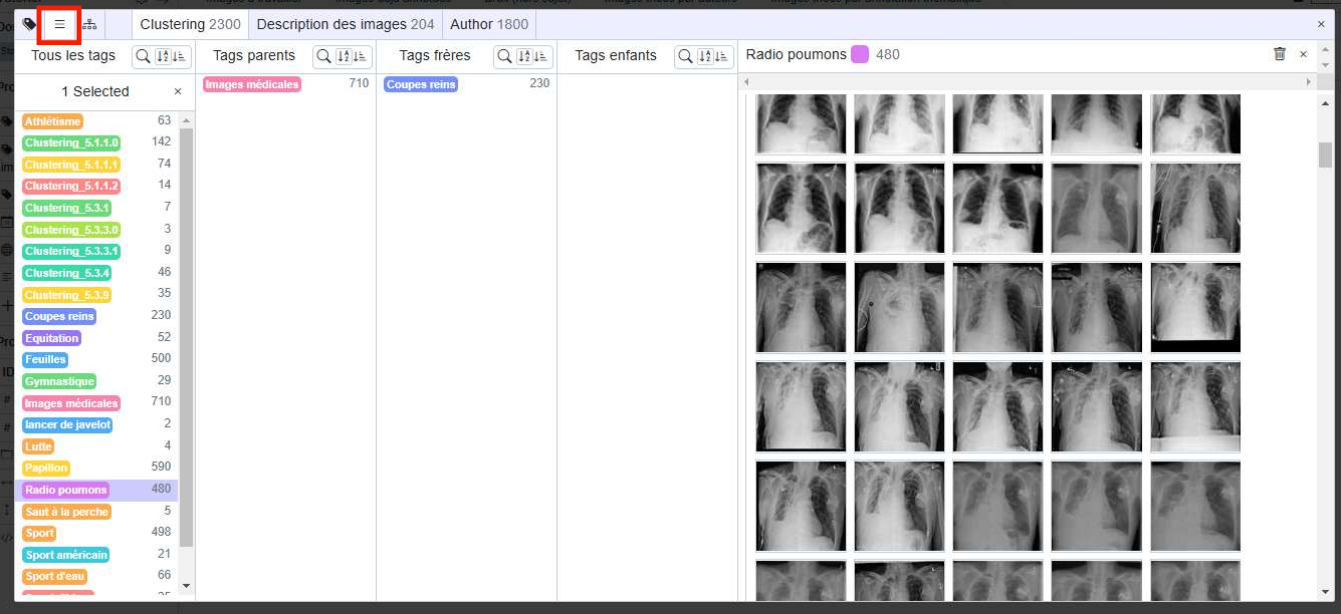 - the tree view, which is more visual and particularly useful when trying to understand the hierarchical organization of tags
Access
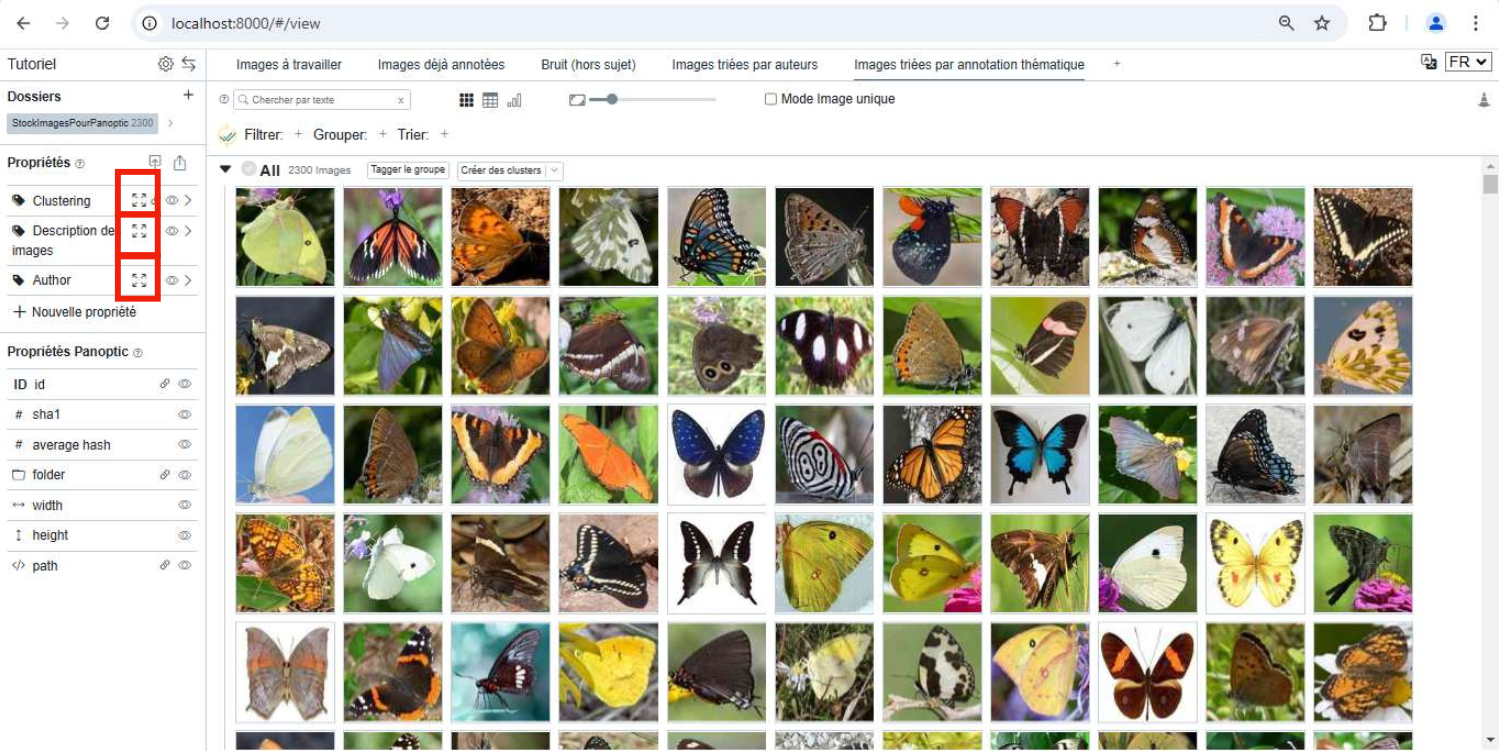
To open this window, simply click on the enlargement icon next to a tag or multi-tag property:
Sort Tags
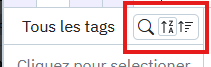
In the list view, it is easy to filter tags by searching in the search field, or to sort them by either their name or the number of images associated with each tag.
To do this, simply use the sort buttons
Multiple Selection
When you click on a tag, its associated images are displayed on the right. But it is also possible to select several tags at once, by holding down the control key (or shift to select a range of tags). It is then interesting to note that the images associated with all the selected tags are displayed at the same time, which can be practical for comparing tags.
Merge
When several tags are selected, it is possible to merge them. The tag "resulting from the merge" will be the first selected tag. It is possible to merge as many tags at once as desired. All parent links will also be preserved.
Create Hierarchical Links
As stated on the previous page, it is possible to create hierarchical links between tags. This operation is facilitated here in the modal, especially in the tree view.
Simply click on a tag and hold to drag a link to the tag you wish to add as a child. The link is therefore made in the direction "parent -> child".
It is also possible to manage these links in the list view; simply take a tag and drag and drop it into the desired column (parent or child) of another tag.