Properties
To give meaning to the images studied in the Panoptic interface, this is done by creating and defining a set of PROPERTIES. It is from the created properties that you can annotate the images. These properties are of several types (in English):
- text,
- numeric,
- tag,
- multi_tags,
- checkbox,
- url,
- date,
- color.
Once the properties are created, you can associate annotations with each image separately, or with batches of images, in connection with a particular property, or with several properties. Properties can be created as you go, and not necessarily defined upstream.
Create and Display a Property
To annotate your images, you must first create at least one property, which will contain annotations of specific types (tag, date, text, number...).
To create a property (for example, of type "MultiTags"):
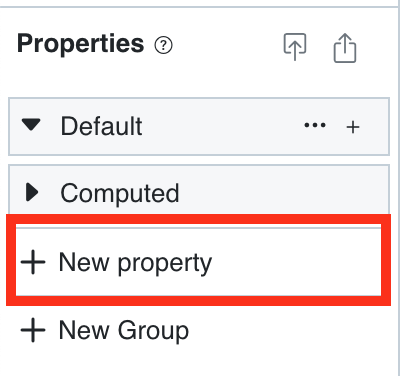
- On the left, click on "New property."
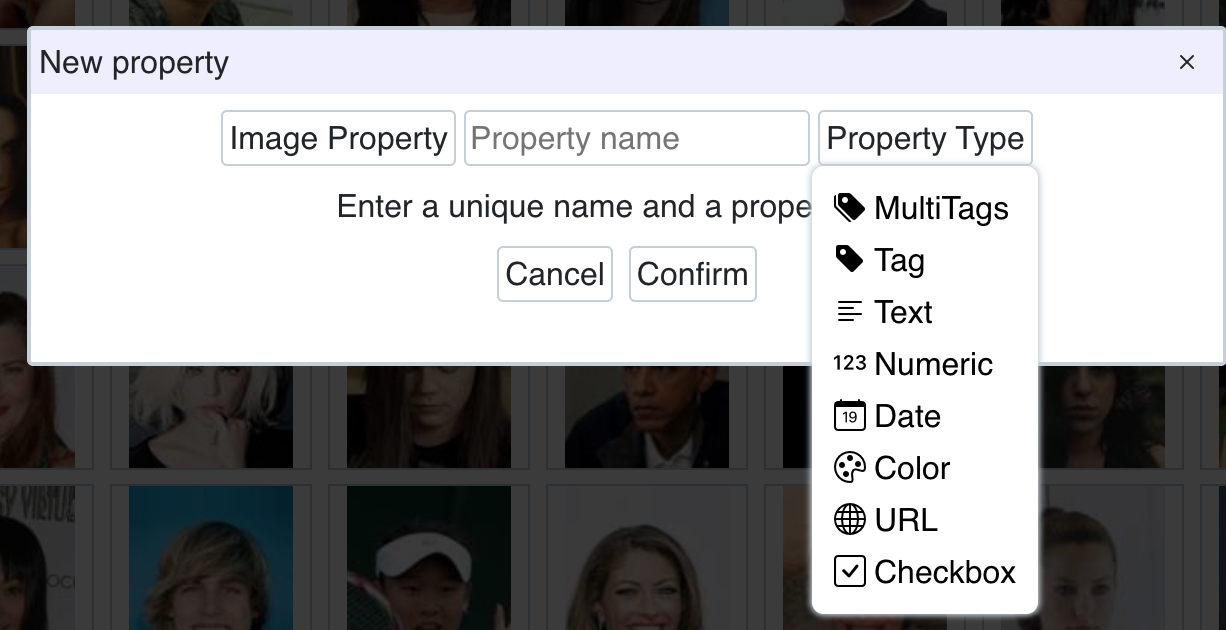
- Name the property, choose its type, and choose whether it is an image or instance property. Click "Confirm."
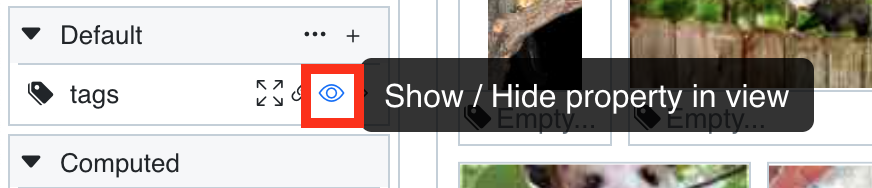
- Display (or hide) the created property by clicking on the eye icon next to its name.
Important
It is not necessary to define in advance the properties you will need during your work. These can be created as you go.
Image Properties, Instance Properties
A point that can be complicated to decide is the choice between image properties and instance properties. To understand the difference between the notions of images and image instances, you can refer to the glossary.
- If you choose the image property option, you will annotate, for the created property, all instances of the same image.
- If you choose the instance property option, you will annotate a single instance of the image.
For example, you are working with tweets that contain images. If 50 different tweets use the same image:
- Choosing the image property option will allow you to annotate all 50 tweets at once, which use the same image: this is relevant if you want to describe the image as such, but it is not if you want to annotate the context of the image's use.
- Choosing the instance property option will allow you to annotate the tweets one by one: this is relevant if you want to describe the context of the image's use, but it is not if you want to annotate the image as such.
Relationships Between Properties
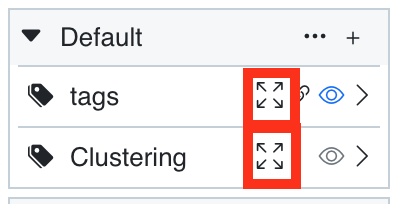
It is possible to define hierarchical (parent-child) relationships between annotations for Tag and MultiTags property types. These properties are indeed specific and can be managed in a dedicated space. This space opens from the properties pane, located on the left of the screen, by clicking on the associated symbol.
Important
In this tag management space and its relationships, two views of these relationships are available depending on the needs: the "tree" view and the "list" view.
"Tree" View of Tag and Multi-tag Properties
In the example, the "tree" view shows existing parent-child relationships (sport/athletics/pole vault; medical images/lungs). The parentage of the different annotations made is done by grabbing an annotation with the mouse and dragging it onto the more general level annotation.
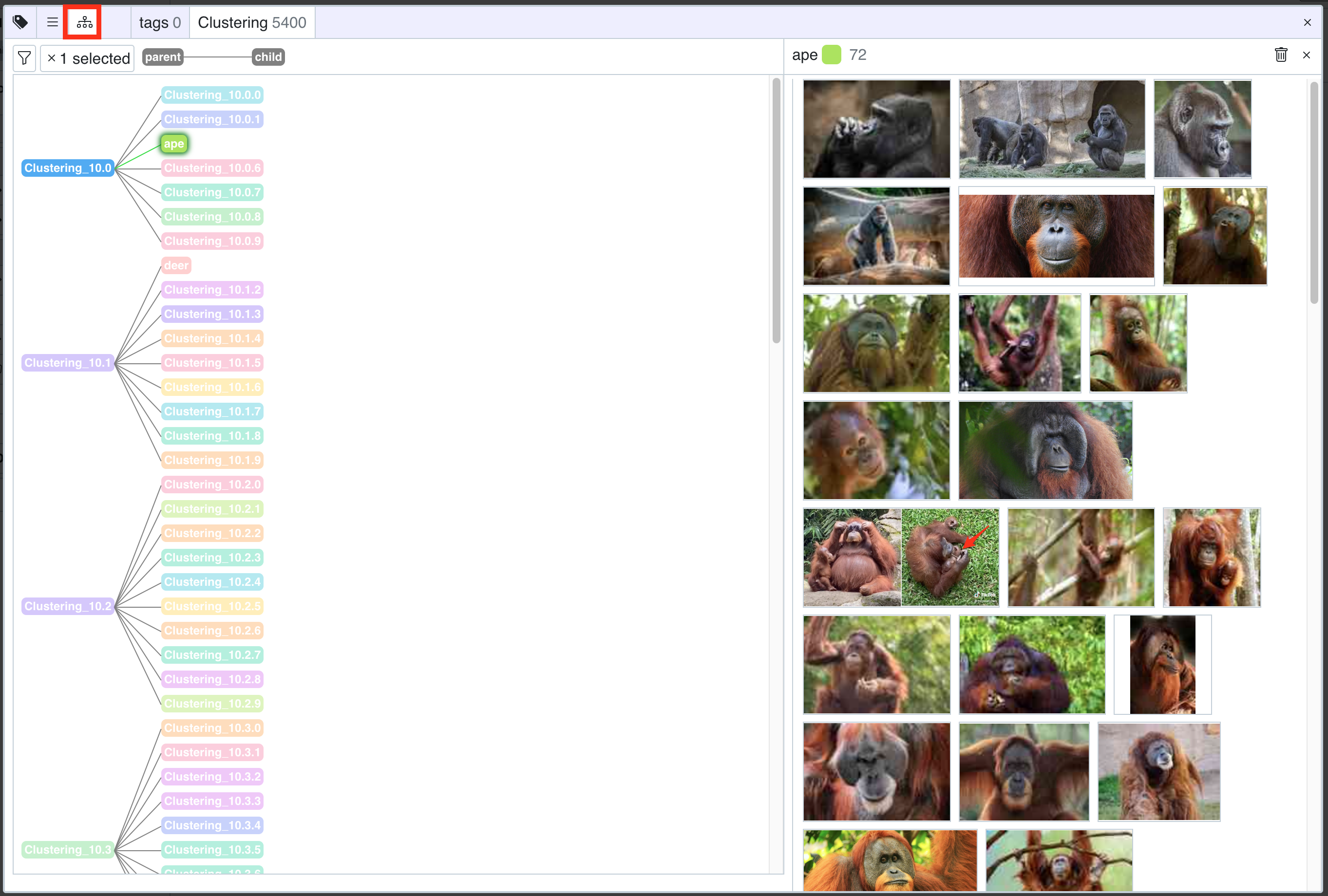
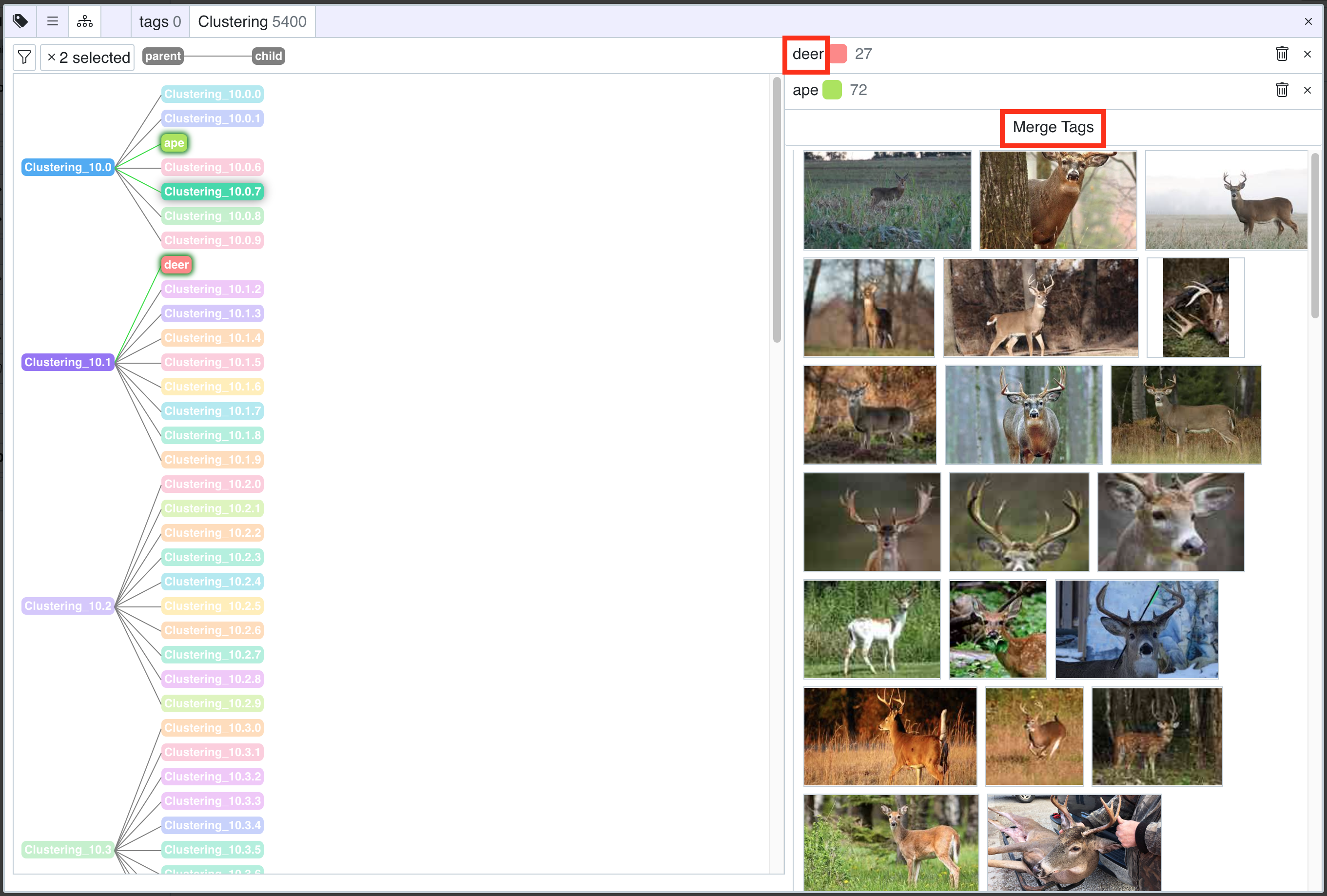
In this tag management space, you can rename your different tags, to improve them if necessary, or merge them, if you find duplicates for example. To merge them, select several tags (using the shift key) and click "Merge Tags."
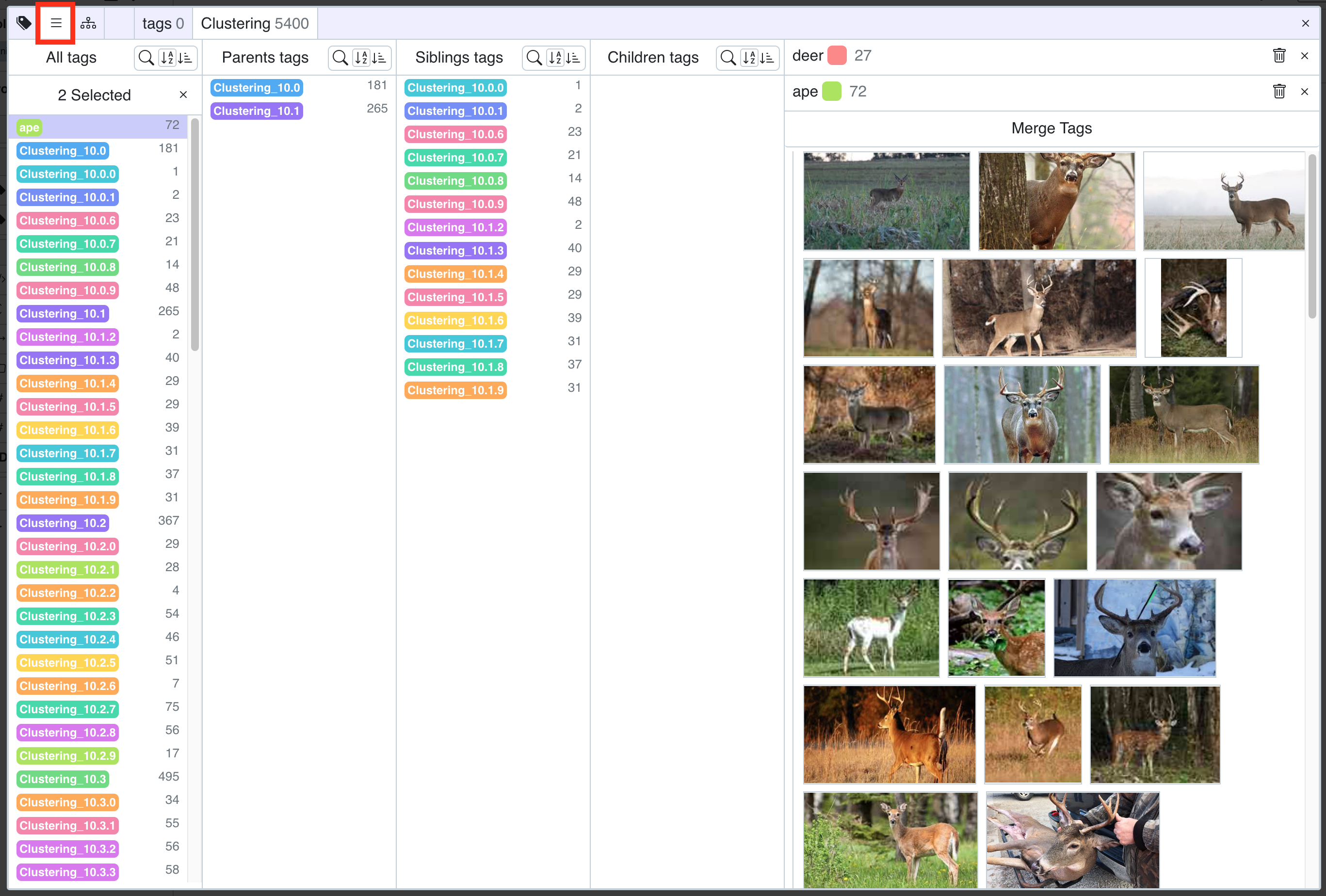
"List" View of Tag and Multi-tag Properties
You can also display images in "list" view. Here, when you select a tag, it displays its different relationships: parents, siblings (same parents), children.
Panoptic Properties
"PANOPTIC PROPERTIES" are non-manipulable properties. They are calculated by the software during image import and provide you with some metrics: a unique identifier for each image ("ID"), a signature specific to each image to identify perfect duplicates ("sha1"), a signature specific to roughly similar images ("average hash"), their original folder on your computer ("folder"), as well as their absolute path ("path"), and finally their dimensions ("width" and "height")