Import Images
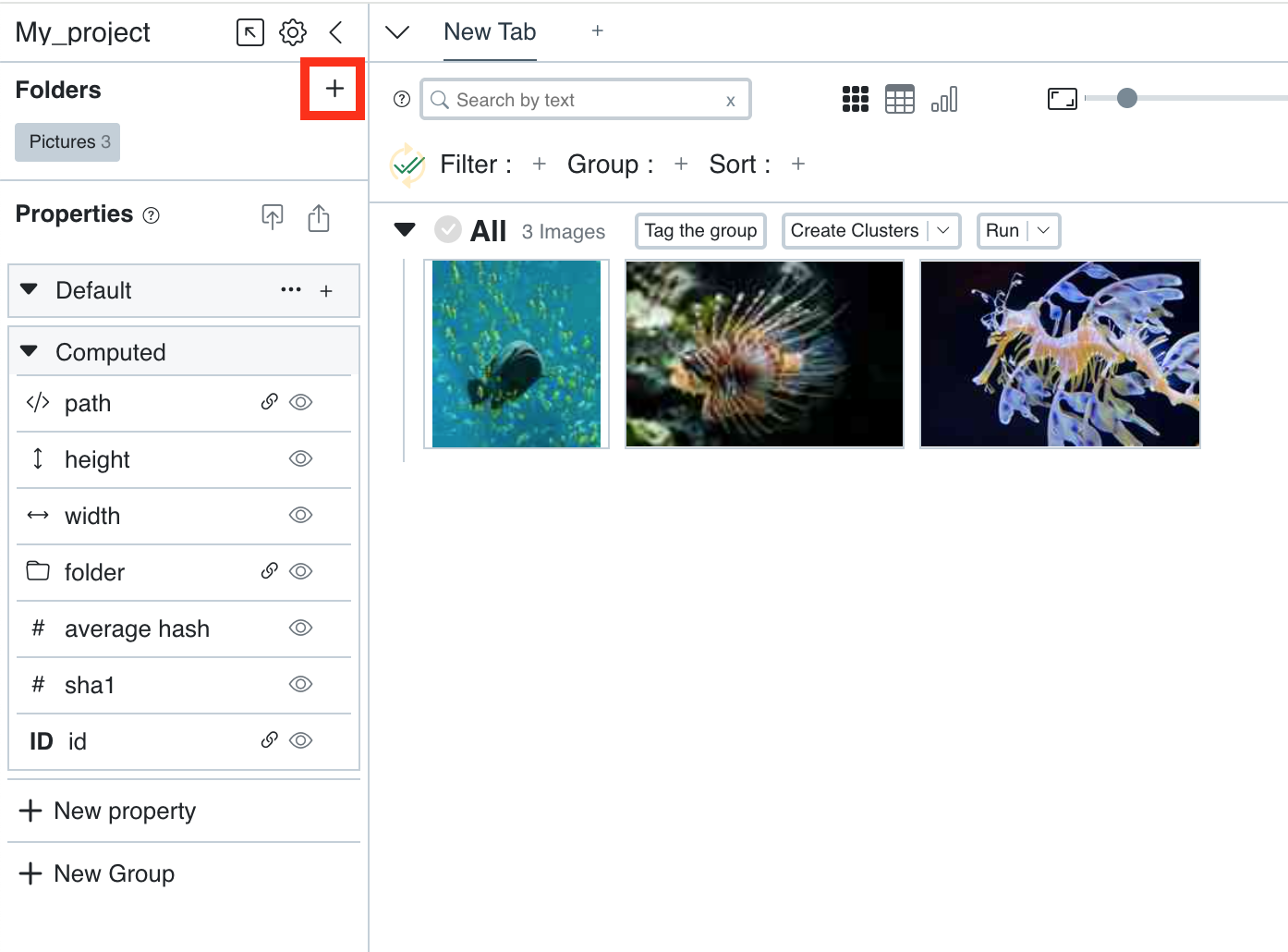
Once a project is created or opened, the main Panoptic window opens.
To import images, click on the "+" in the top left of Panoptic. You then need to select the folder where the images you want to import are located.
Precision
Importing a folder also imports all subfolders contained within it.
You can successively import several folders containing images.
You should not move the folder containing the images, nor rename its path afterwards.
Import Tracking
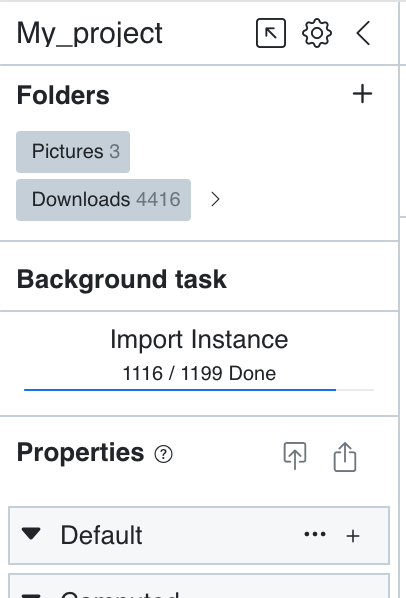
Once you have selected the image folder(s) to import, the import and calculation time generally takes several minutes. This depends on your computer's power and the number of images imported.
You can track the import progress on the left, in the "Background Task" section. Several pieces of information are indicated: the progress of image import, their thumbnails, and their vectorization.
Important
For images to be vectorized during import, you must have previously installed the "PanopticML" module.
Reminder
What is image vectorization for? Broadly speaking, image vectorization is a necessary prerequisite for searching for images similar to each other, based on their formal content (what is seen in the images).