Manipulating Images Based on Their Properties
Important
Prerequisite for (re)arranging a corpus:
To create FILTERS, SORTS, or GROUPS, PROPERTIES must exist and be filled. For example, initial annotations of corpus images have been made thematically: "butterfly", "sport"... Another example, data associated with images has been previously imported, which are constituted as properties during their import.
These different functionalities are visual exploration functionalities: everything happens on the screen; the (re)arrangements are neither definitive nor destructive to the corpus. They can be constantly canceled, redone, modified... These (re)arrangements can also be multiplied to explore the corpus in different ways, thanks to the possibility of creating different tabs within Panoptic.
(Re)arrangements can be performed at any time during exploration. They can also be planned in advance, once the properties are created, but before anything has been annotated. If annotations are made during the work, one can decide whether or not to activate automatic updating, so that the corpus rearranges itself in the window in real time, or only when desired.
Filter
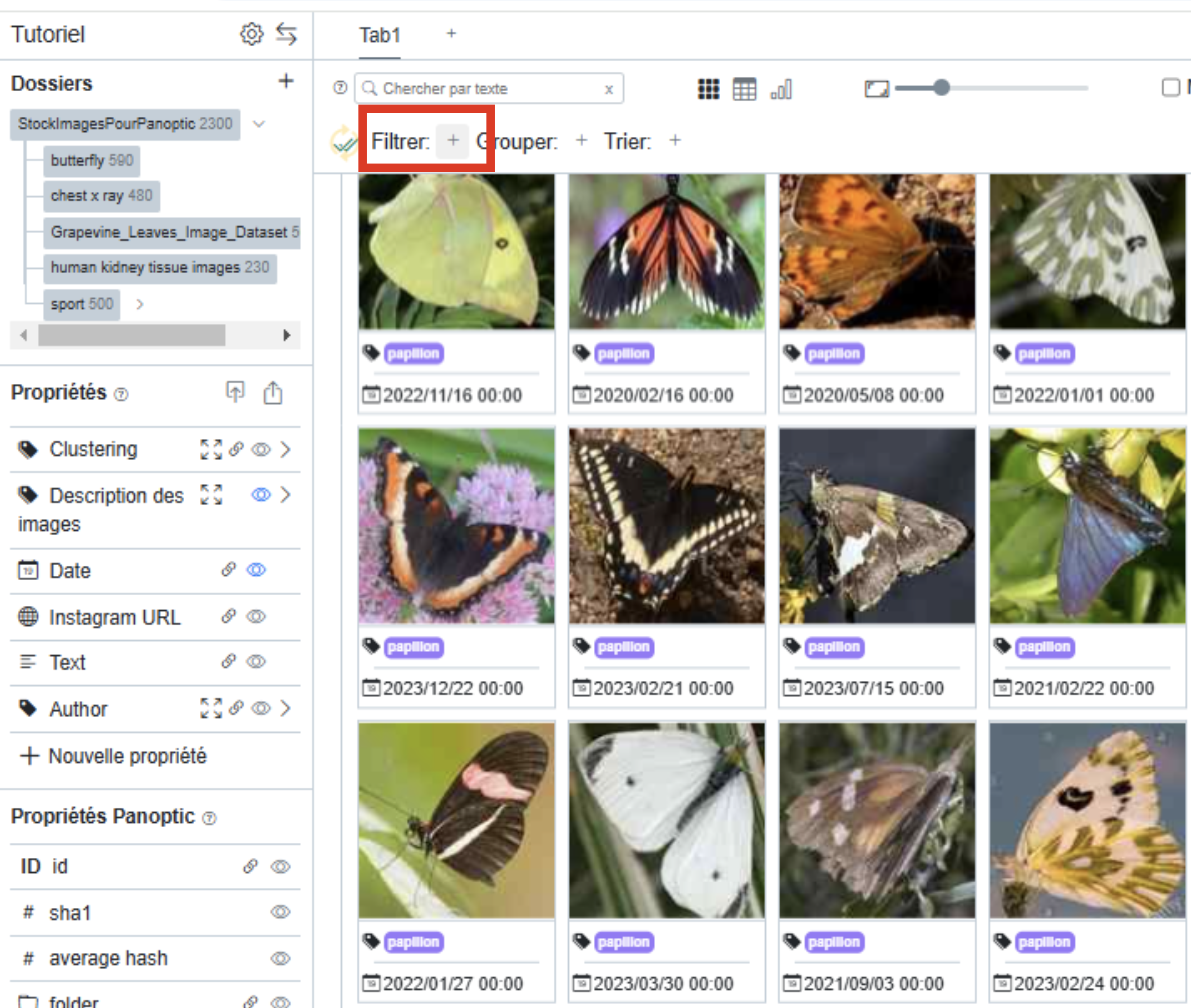
- Press the "+" next to FILTER.
- Select the property from which you want to filter the images. Here you define the display conditions for the images.
Why filter?
Filters can be useful in different cases. For example, you can choose to filter images you have already annotated, to display only those you still need to work on.
Another example, you can also create a CHECKBOX type property, name it "off-topic" or "annotation completed?", and decide that images no longer appear in the active Panoptic tab once you have checked the box.
Group
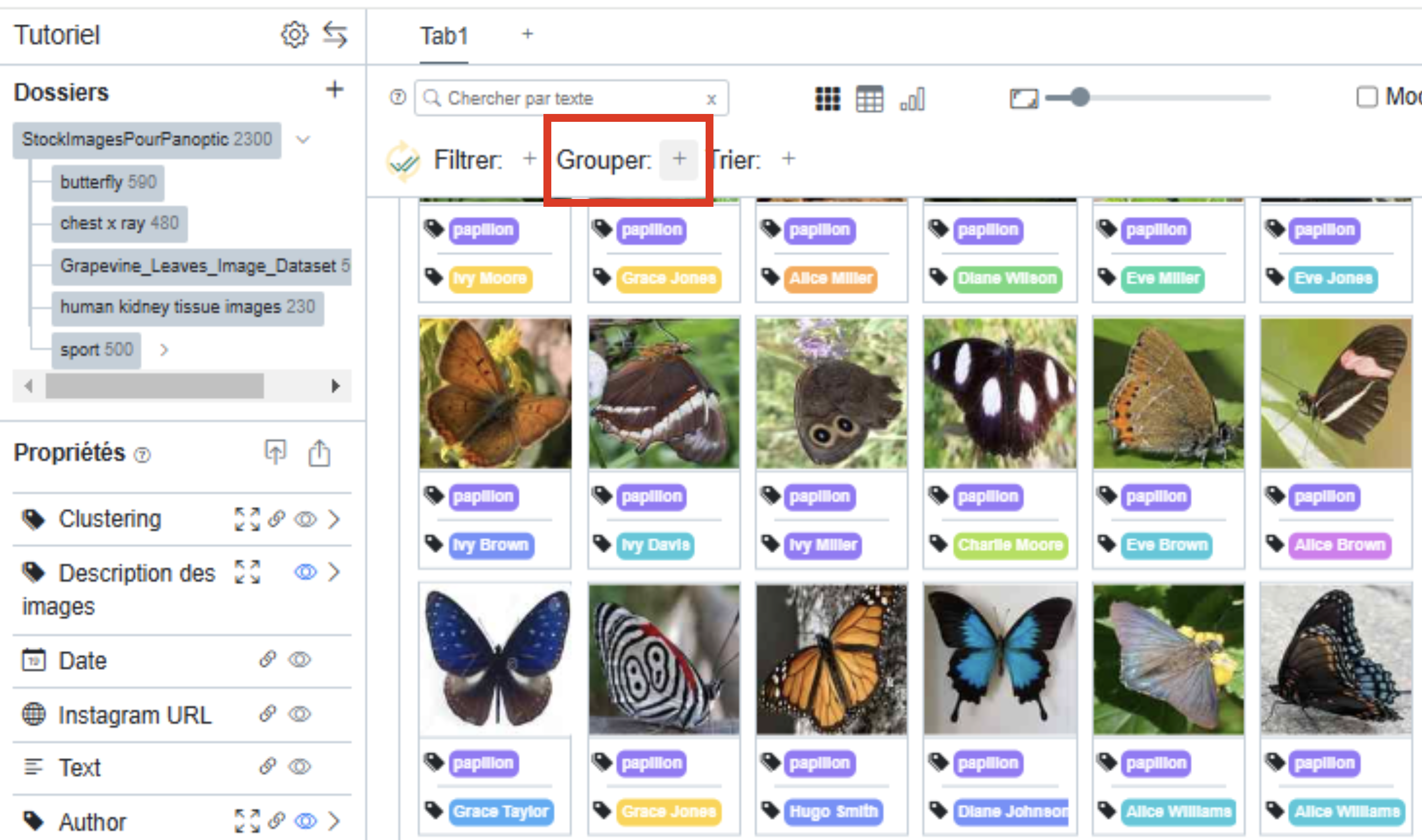
By clicking on the "+" next to the GROUP function, select the property from which you want to group images. Once the property is selected, the groups are formed directly on the screen, in the central panel of Panoptic, according to the given criterion.
Reordering groups:
When a grouping type is added, it is indicated next to the GROUP option. It is possible to change the sort type (number of elements, alphabetical) and the order (ascending or descending) by clicking on the corresponding arrows.
Groups and subgroups:
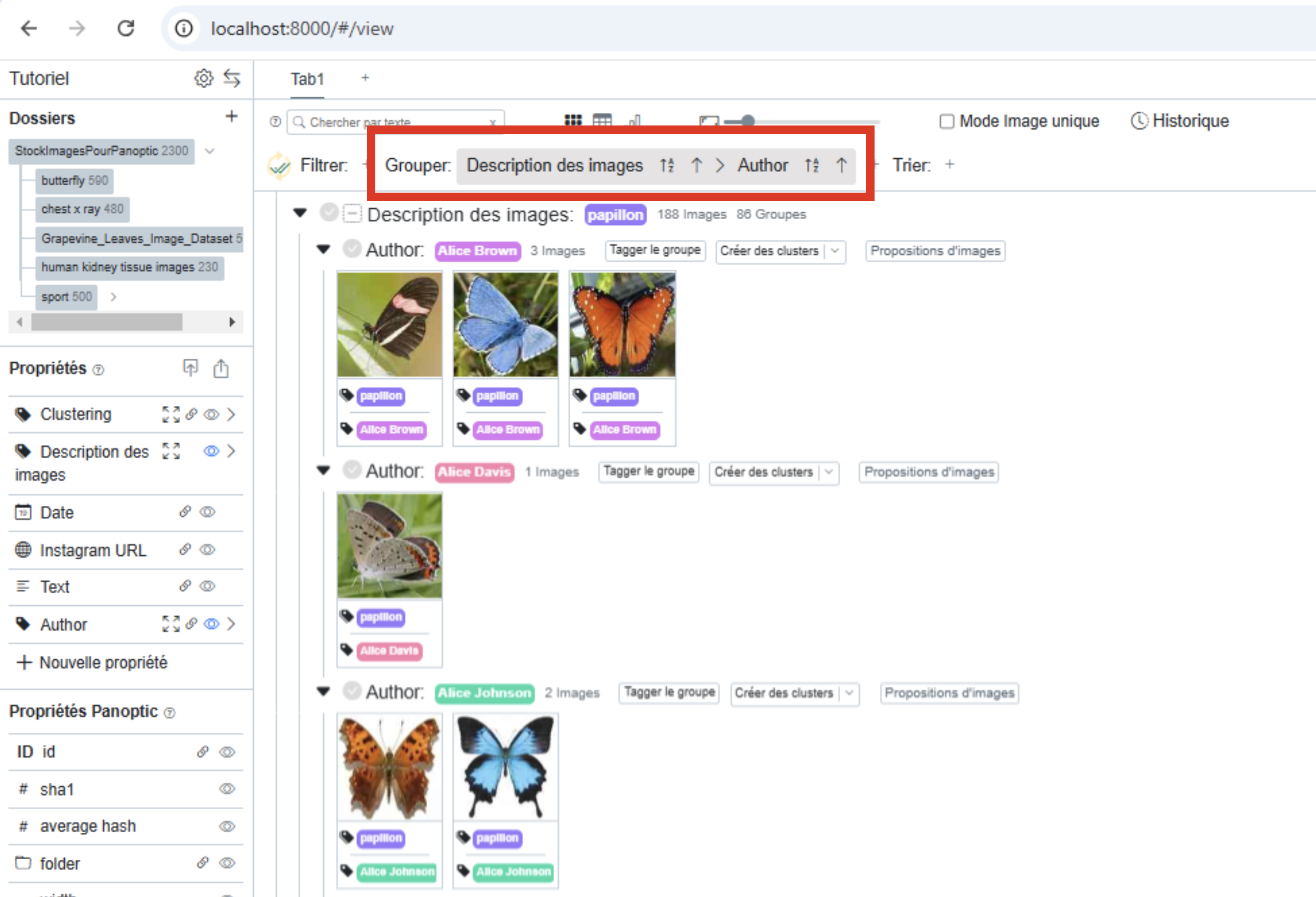
It is possible to create groups within groups, for example by grouping by a thematic property (what has been annotated to describe the image with a keyword), then by a property imported as metadata, the name of the photographer for example.
Delete a group:
To delete a group, simply click on the name of the property you want to delete, next to the GROUP option.
Create clusters within a group:
It is possible to create clusters of similar images within the same group of images to rearrange it.
Sort
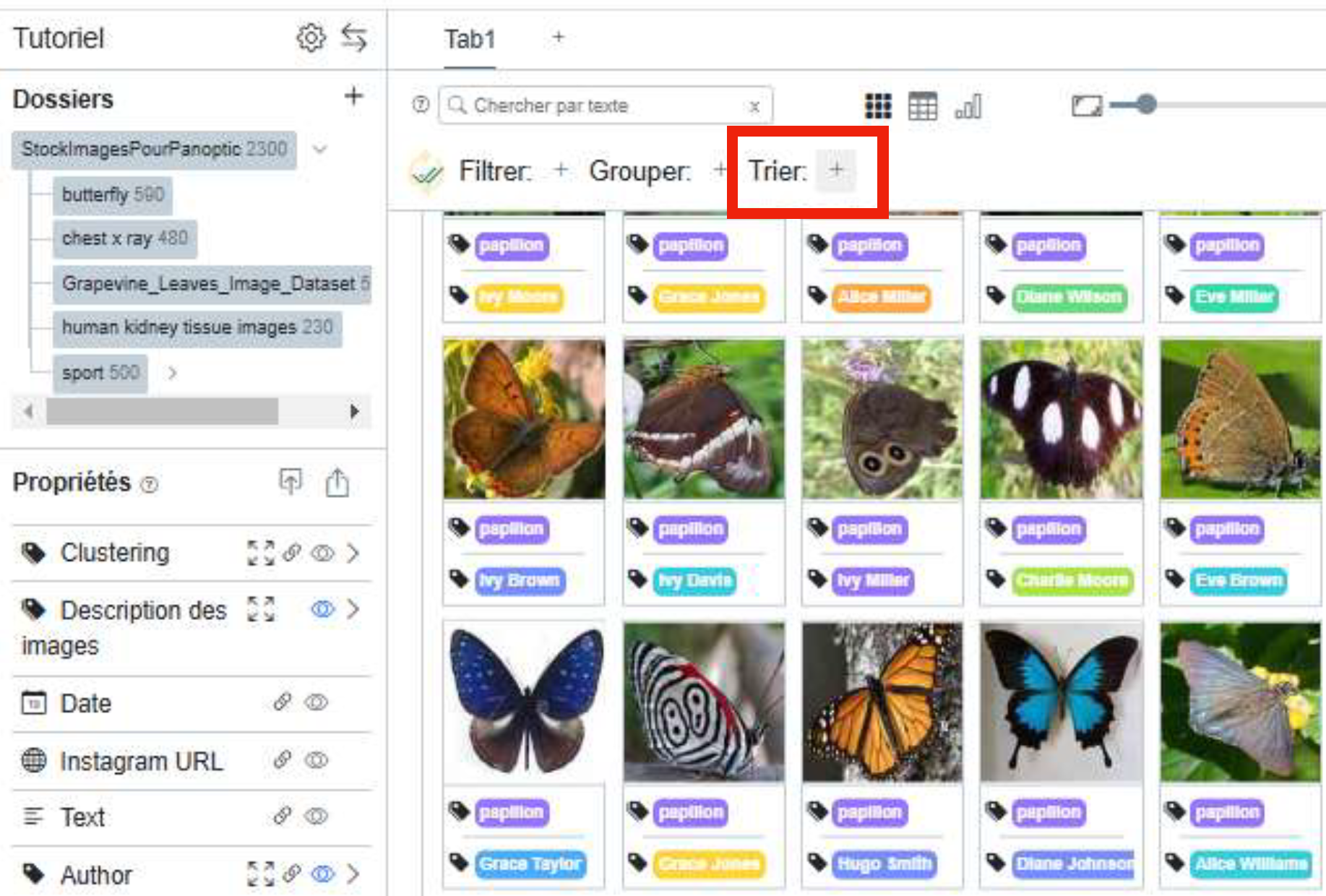
- Press the "+" next to "SORT".
- Select the property from which you want to sort the images.
It is possible to arrange them in alphabetical order, or chronologically, for example.
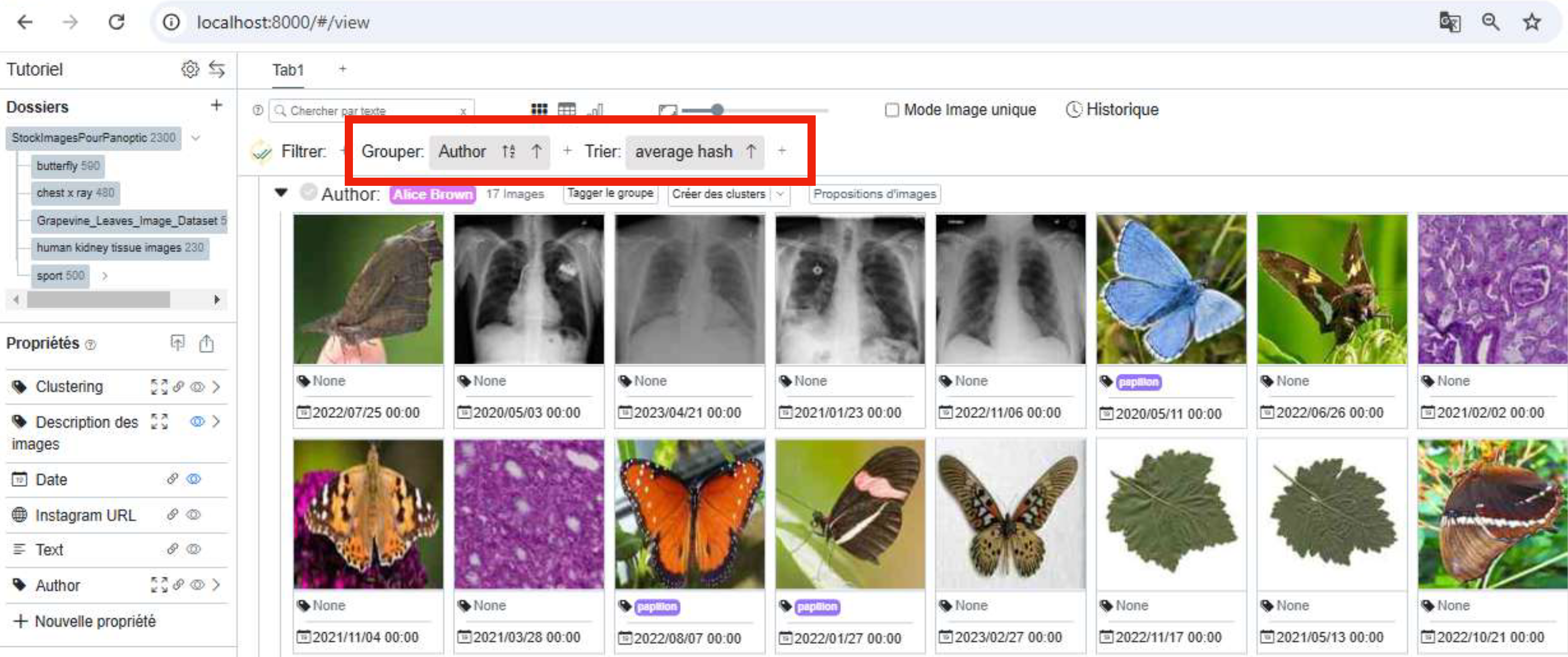
It is possible to combine GROUPING and SORT functions: one can then create groups based on certain properties, and sort the images arranged in these groups based on other properties. Sorting within groups can, for example, be performed using the "average hash" property calculated by Panoptic. This is a summary similarity calculation. This can, for example, allow sorting photos by the same photographer (group by "author") based on their general resemblances (sort by "average hash").