Clusters
Clusters are a particularly important concept in how Panoptic works. Once vectors are calculated, images can be automatically grouped into clusters. Unlike groups created with properties, clusters are configurable, can be generated with different algorithms, and are not deterministic (the same clustering can produce slightly different results depending on the executions).
Creating Clusters
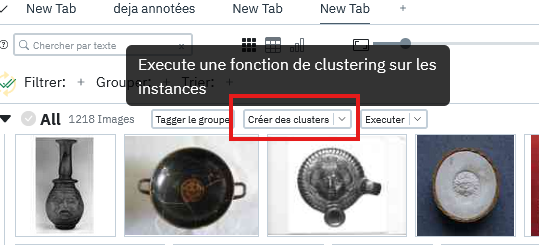
Once the project is launched and plugins are loaded, click on the "Create clusters" button:
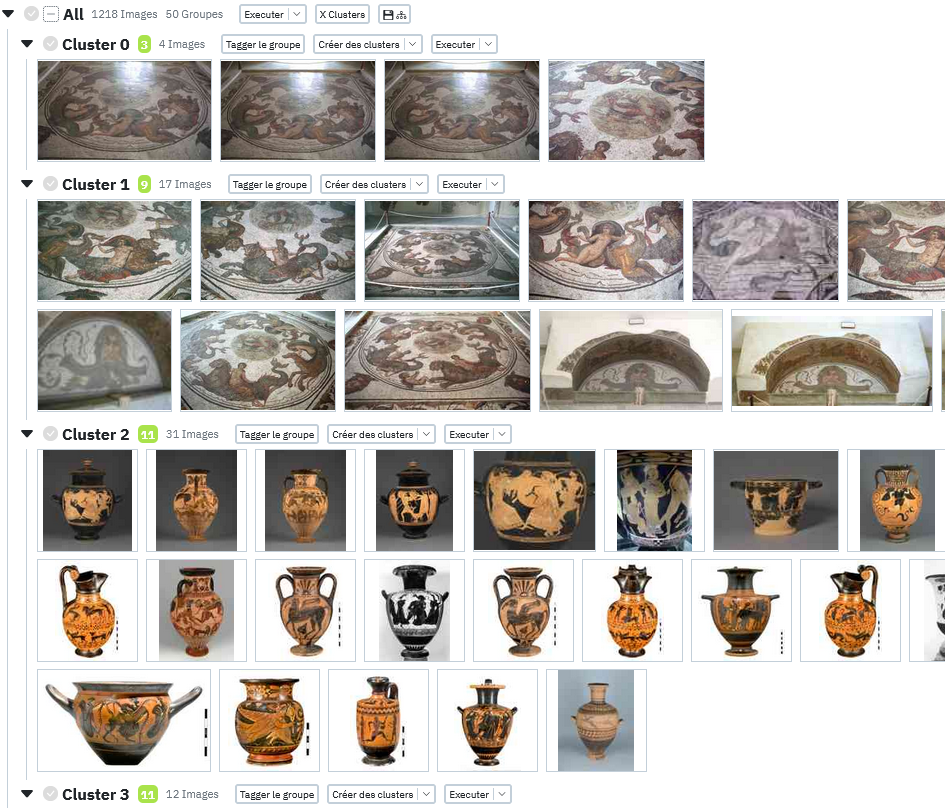
This should separate your images into 10 distinct groups by similarity as shown in the image below:
Parameters
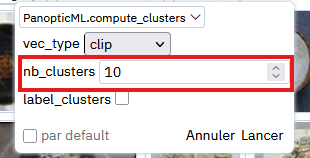
It is also possible to choose the number of clusters you want to produce by clicking on the small arrow located on the "Create clusters" button to open the parameters.

Then simply modify the value of nb_clusters to indicate the number of clusters to create.
Info
There are other parameters visible in this image for more advanced uses that we will see later.
Automatic
It is also possible to request an automatic number of clusters to produce by entering -1 in the nb_clusters value, but it should be noted that this will take longer to calculate and the result will be very variable from one corpus to another.
Scores
Each produced cluster has a score displayed in color next to its name. These scores are an indicator of the cluster's relevance, i.e., how close the images within it are to each other. The lower the score, the more coherent the cluster is considered. This score is there to give a general idea and can vary from one corpus to another. In other words, if a score of 15 can result in a cluster with almost visually identical images in some corpora, it may be more disparate in others. This depends on the diversity and number of images present in the latter.
Nesting Clusters
An important feature of Panoptic is the ability to nest clusters. Indeed, the postulate followed here is that machine learning models will never produce perfect clustering and that it must/can be reworked by the person using Panoptic. In fact, it is possible to re-divide a cluster by pressing the "Create clusters" button again to refine the grouping of images.
This process can also be repeated indefinitely (as long as there are images to separate).
Saving a Clustering
The clustering process is primarily an exploration tool and is not automatically saved in Panoptic. If you want to persist the work done with this tool, you must either have annotated the images in the clusters or click on the cluster save button:
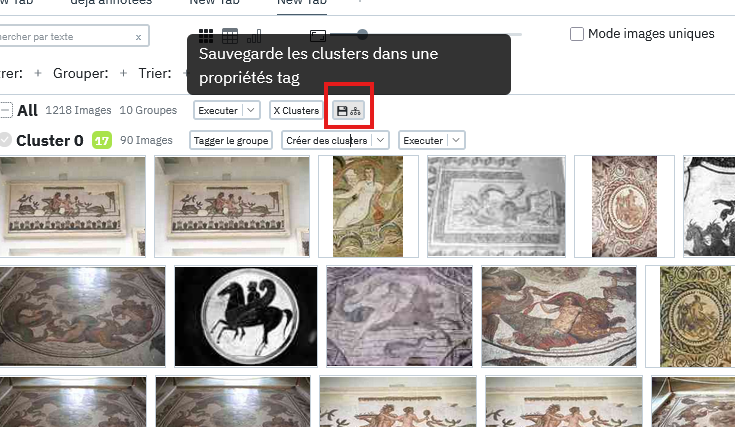
This button creates a new property named "Clustering" which will assign to each image the cluster it was in as a tag. It should be noted that since clusters can be nested, the tags themselves can be hierarchical.
Different Ways to Cluster
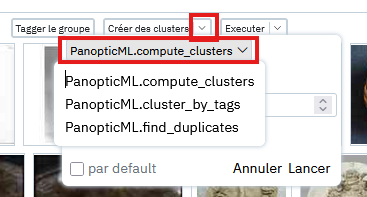
The main method presented so far is the default "PanopticML.compute_clusters," but there are other ways to create clusters in the similarity plugin, and other plugins may also offer other ways. Those available by default in the similarity plugin are the following:
- compute_clusters: default version that uses the KMeans algorithm and groups images based on a requested number of clusters, practical for quickly iterating and making "large cuts" in a corpus.
- find_duplicates: creates groups by ensuring a minimum similarity threshold between the images in these groups, which can be useful for identifying duplicates or near-duplicates in a corpus. The similarity threshold can be modified to be more or less permissive.
- cluster_by_tags: experimental, takes a tag or multi-tag property as input and tries to attach each image to the tag it is closest to.
This method can be chosen from a dropdown field in the clustering parameters:
To Go Further
For concrete examples of use, see an example of methodology using clustering